広告のパーソナライゼーション、リマーケティング、広告のパフォーマンス分析など、広告に使用されるクッキーを管理します。
2.5.2.2.1.5. Upload files to server using FileZilla
To upload files to the server, you need to connect to the server. After connecting, the standard FileZilla window will appear: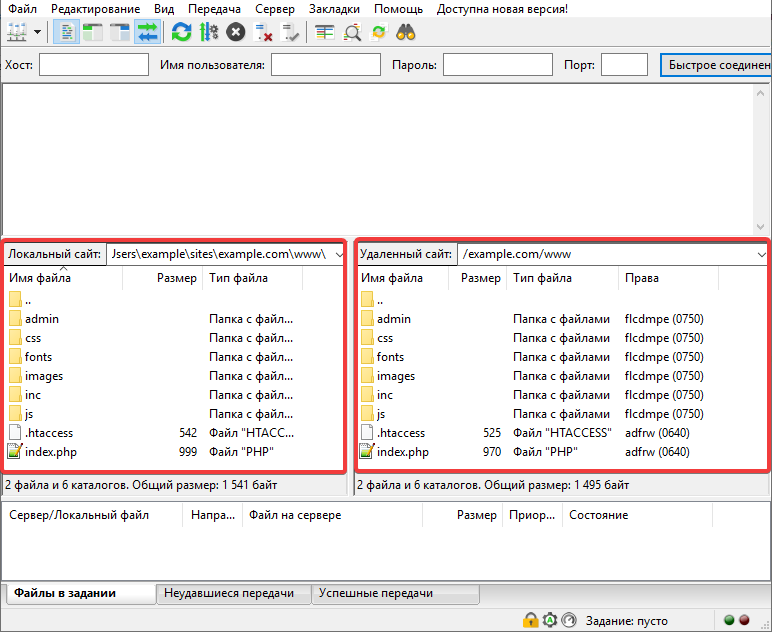
- "Local site" — files located on your local computer.
- "Remote site" — files hosted on the server.
To upload a file to the server, simply drag it with the mouse from the left panel to the right: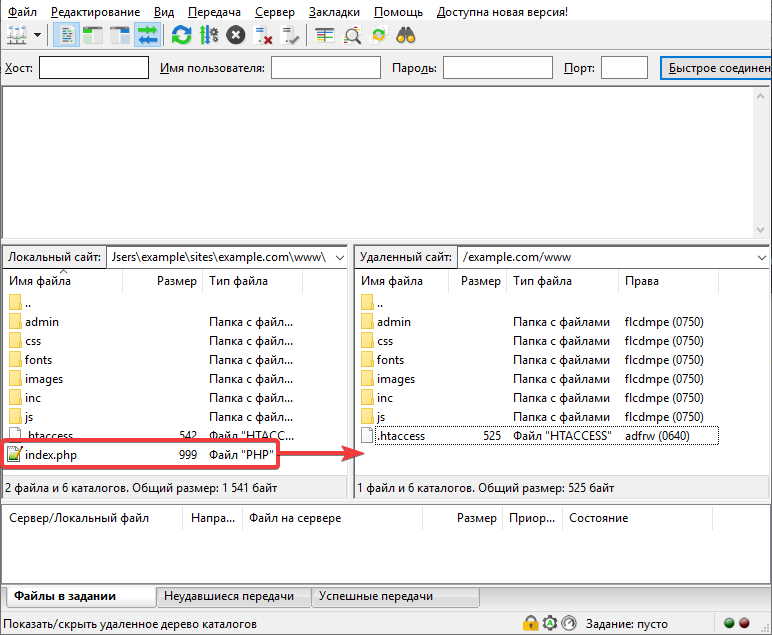 The file upload will be added to the task and will be displayed:
- In the connection log:
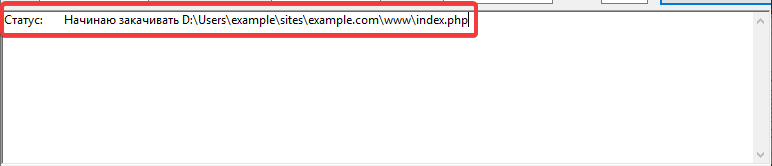
- On the tab "Files in the assignment":

After uploading, the relevant tab will display information about the results. Upon successful upload, the information will be displayed:
- In the connection log:
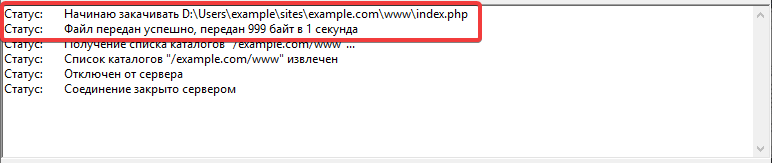
- On the tab "Successful Transfers":
