広告のパーソナライゼーション、リマーケティング、広告のパフォーマンス分析など、広告に使用されるクッキーを管理します。
2.17.1.1.2. Enable and disable traffic filtering in Cloudflare
For detailed information on working with Cloudflare, see the official documentation.
Enable
Attention!
Enable this mode only when traffic filtering is really necessary.- Connect domain to Cloudflare.
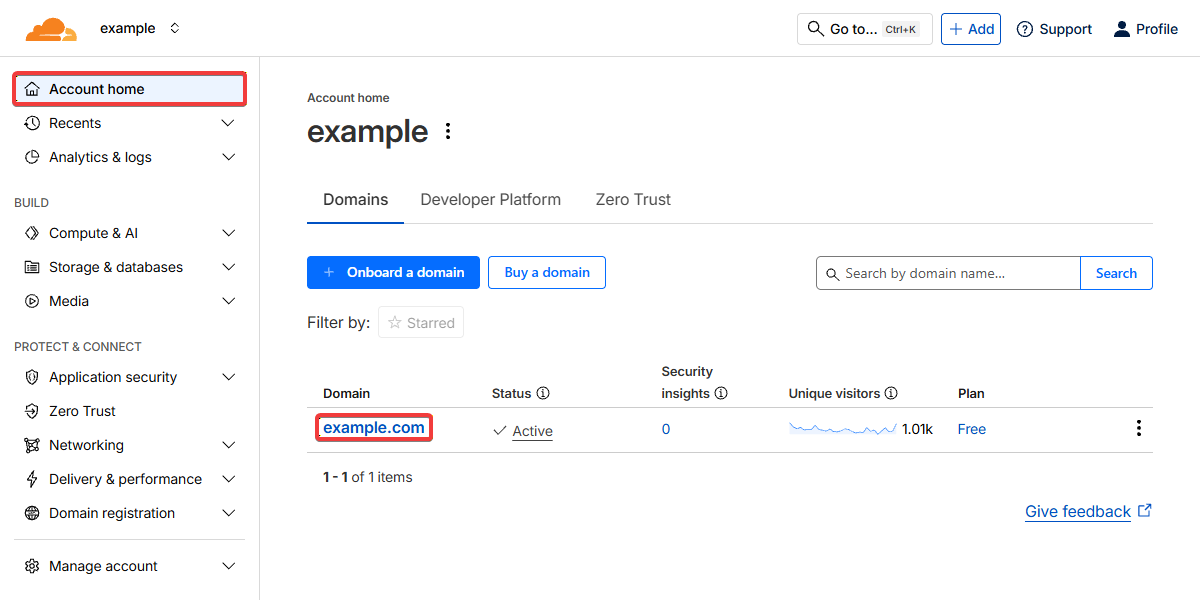
- On the Cloudflare control panel home page, click on your domain:
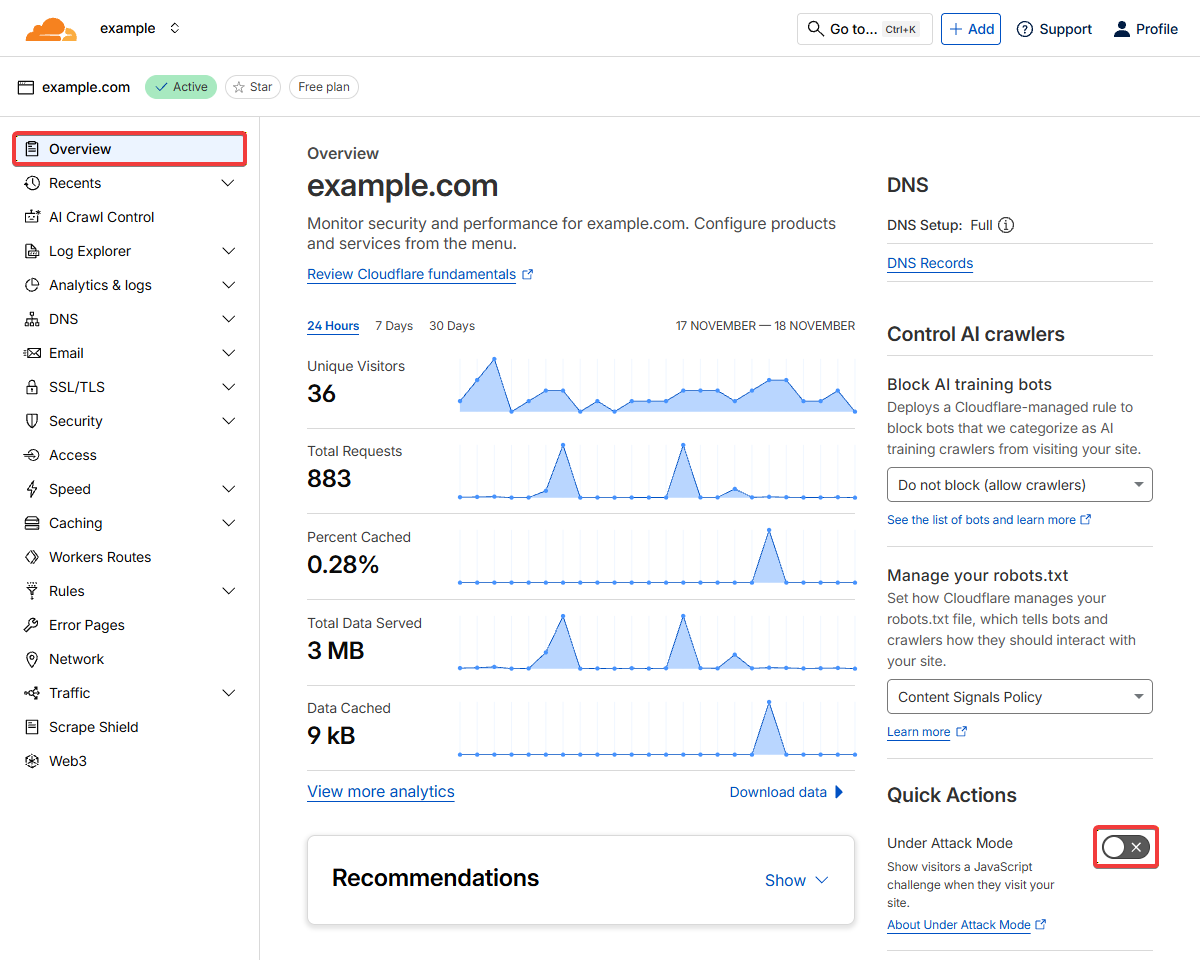
- In the "Overview" section in the right pane, enable "Under Attack Mode":
Disable
Notes:
- Disabling proxying allows you to quickly point the domain directly to the hosting. The domain will continue to be served on Cloudflare's NS.
- To disable proxying for multiple DNS records at once, select the desired DNS records and click "Edit N records".
On your domain page, in the "DNS → Records" section, click "Edit" in the row with the DNS record, disable the proxying switch ("Proxied" should change to "DNS only"), and save the changes: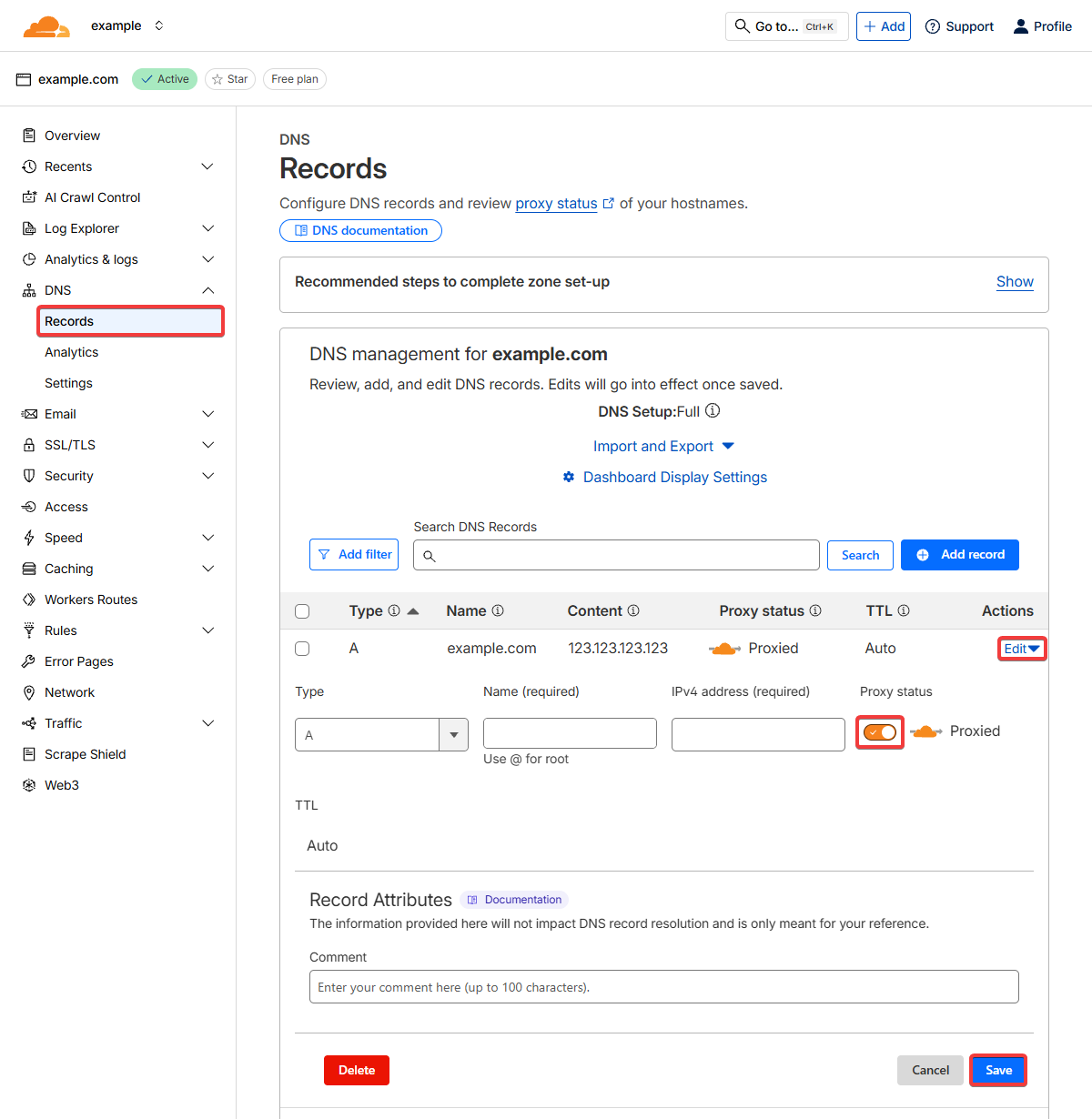
Repeat these steps for all DNS records for which you want to disable proxying.