広告のパーソナライゼーション、リマーケティング、広告のパフォーマンス分析など、広告に使用されるクッキーを管理します。
4.3.4.4. Set up Outlook mail client (Android)
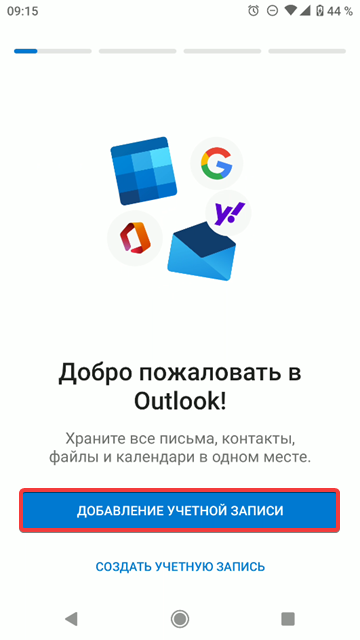
- If you are starting Outlook for the first time, click "Add account" and go directly to step 6:
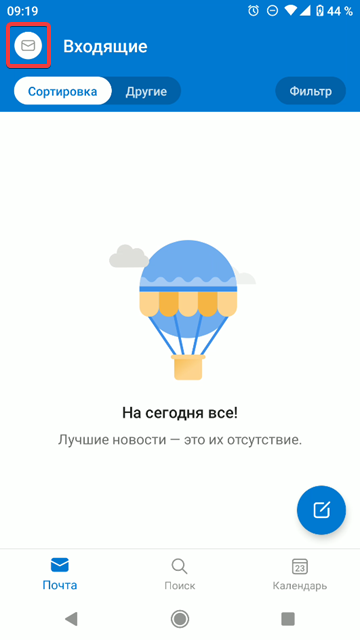
- Open the app menu by swiping right or tapping menu button:
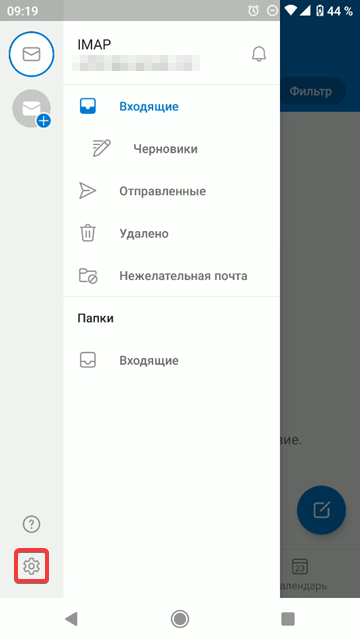
- Click ⚙️:
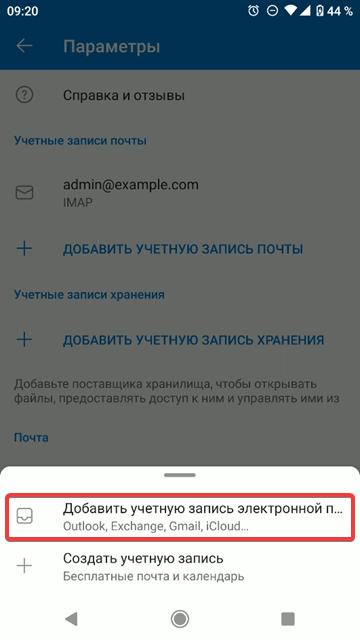
- Click "Add email account":
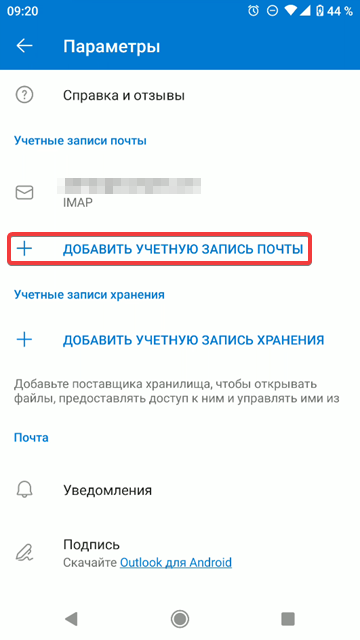
- Click "Add email account":
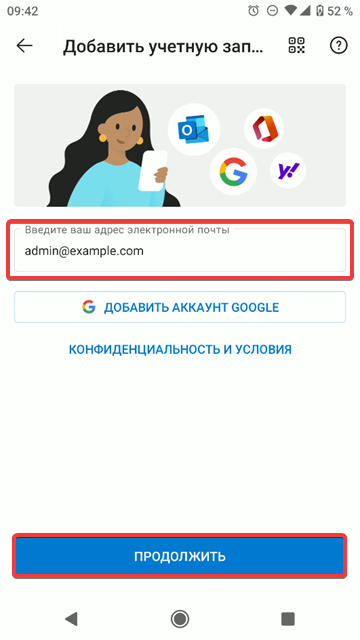
- Enter the name of the mailbox and click "Continue":
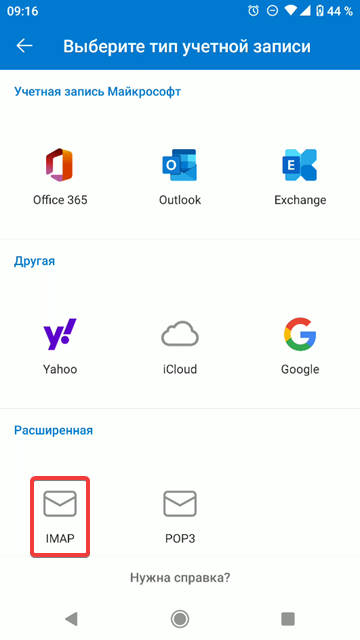
- Select "IMAP":
- Specify connection settings and click ✔️ in the upper-right corner of the screen:
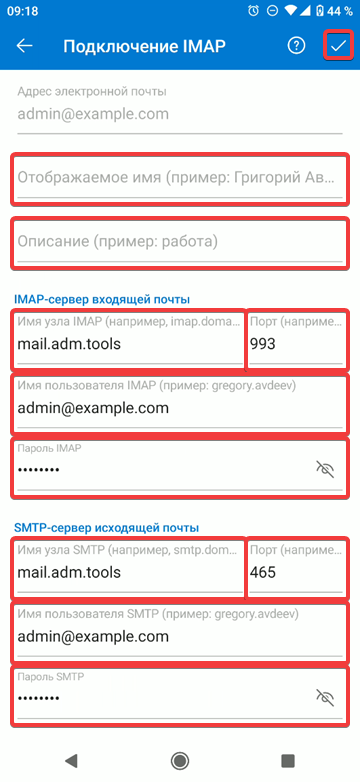
- "Display name" — your name in any form (optional).
- "Description" — custom mailbox description (optional).
- IMAP incoming mail server:
- SMTP outgoing mail server:
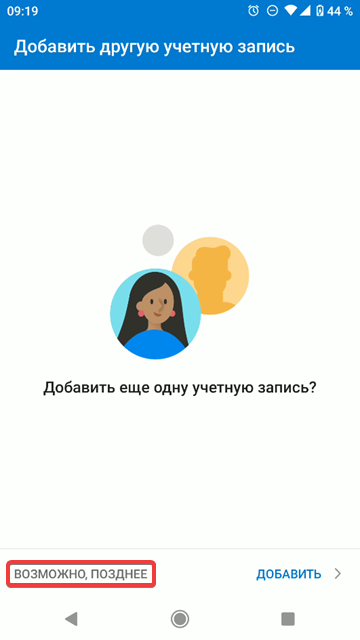
- To add another mailbox, click "Add", to start working with mail, click "Maybe later":
- Check the mail operation.
コメント