広告のパーソナライゼーション、リマーケティング、広告のパフォーマンス分析など、広告に使用されるクッキーを管理します。
4.3.7.3. Set up Gmail mail collector
Google is discontinuing support for mail collector
In 2026, Google decided to discontinue support for the mail collector. The option to set up the mail collector is no longer available for new Google accounts, and for existing accounts, it will only be available until the end of the year. Additionally, for those who still have access to the mail collector, once it is set up, messages will only be collected for 30 days from the date of setup. For more details, see the Gmail Help Center. Instead of the mail collector, we recommend using a redirect.Attention!
- The frequency of mail collection is automatically adjusted by Gmail itself. It is individual for each mailbox and depends on the number and frequency of incoming messages — the more frequently messages arrive, the more frequently Gmail will connect to the mailbox and collect mail. You cannot adjust the frequency manually, but you can force a mail check in the Gmail settings.
- If you are using a domain-linked Gmail mailbox in Google Workspace (G Suite) rather than a regular Gmail mailbox, the account administrator must allow the use of an outgoing mail gateway (see official documentation).
Incoming mail that arrives in the mailbox hosted with us can be imported into a Gmail mailbox. To do this, you need to set up a Gmail mail collector, which will automatically connect to our mail server, check the mailbox for new messages, and import them into your Gmail mailbox.
- Open Gmail settings:
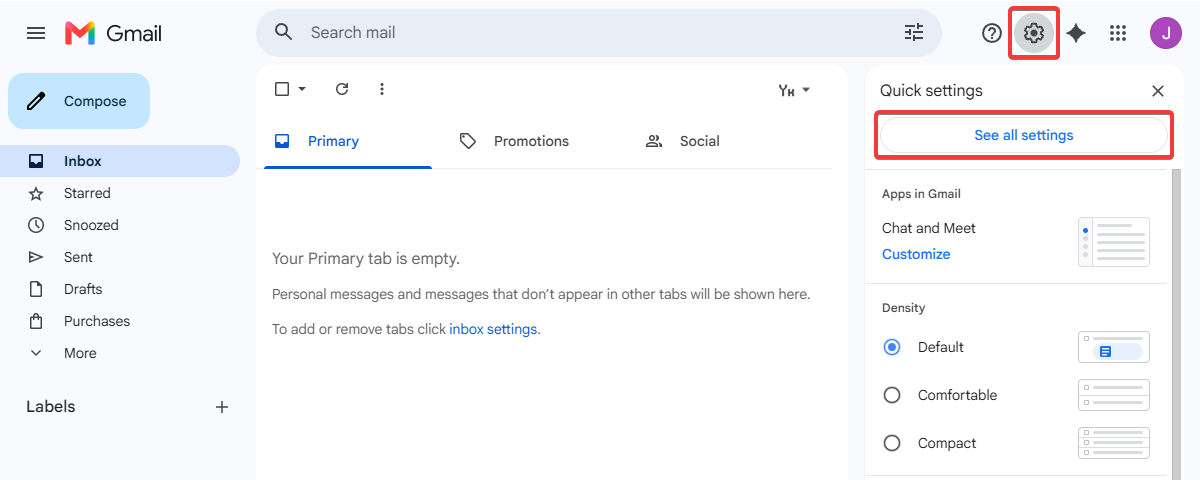
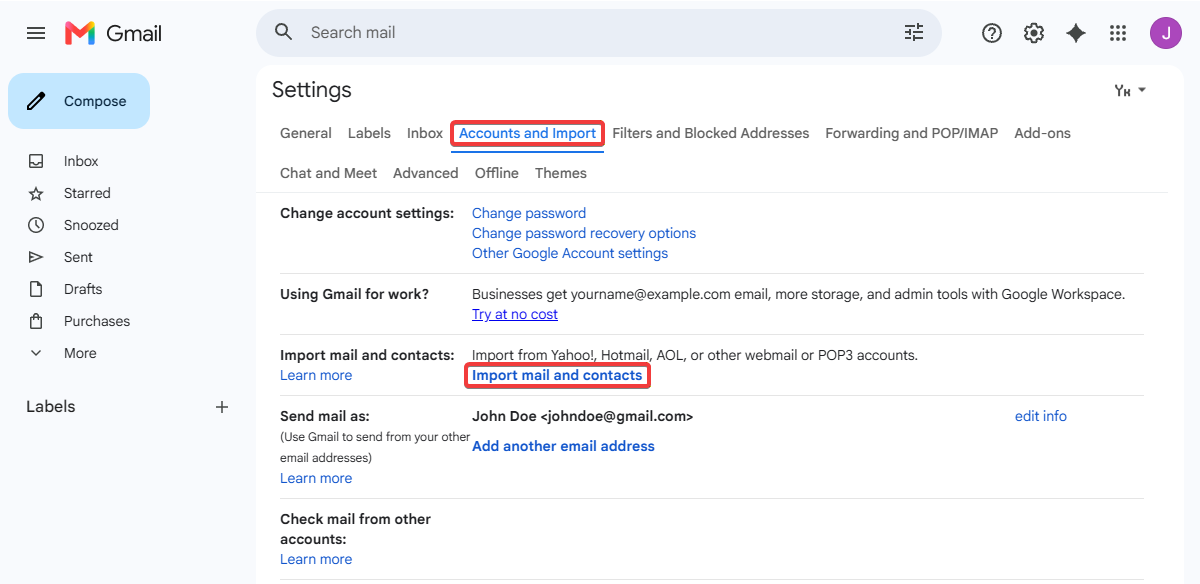
- Switch to the "Accounts and Import" tab, and in the "Import mail and contacts" row, click "Import mail and contacts":
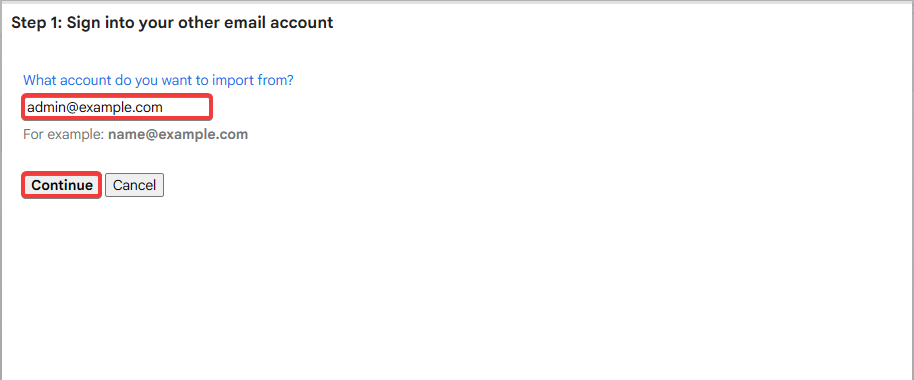
- Specify the mailbox name and click "Continue":
- Specify the connection settings and click "Continue":
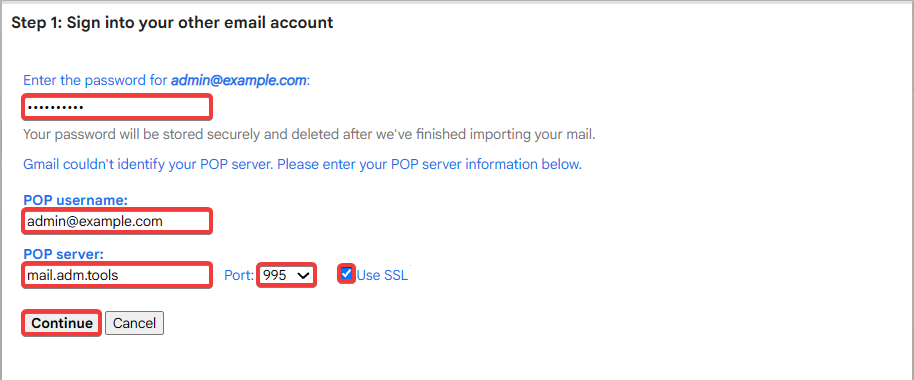
- Password — mailbox password.
- POP username — mailbox name.
- POP server —
mail.adm.tools. - Port —
995. - Use SSL — enable this option to ensure that messages are uploaded via an encrypted connection.
- Specify the import options and click "Start Import":
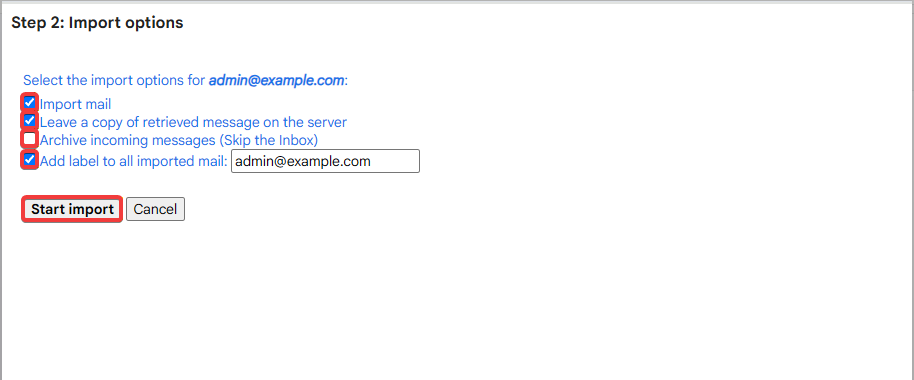
- Import mail — enable to import existing messages.
- Leave a copy of retrieved message on the server — enable this option to prevent messages from being deleted from the server after they are downloaded to Gmail.
- Archive incoming messages (Skip the Inbox) — enable this option if you want to archive collected messages immediately instead of placing them in your inbox.
- Add label to all imported mail — enable and select the desired label if you want to mark collected messages with a label.
- Click "OK".
(4)