広告のパーソナライゼーション、リマーケティング、広告のパフォーマンス分析など、広告に使用されるクッキーを管理します。
2.3.4. OPcache and JIT
Payment
On shared hosting OPcache is paid daily from the balance, on business hosting it is included in the plan price. JIT is only available on business hosting and is included in the plan cost.OPcache
OPcache is designed to cache compiled PHP script bytecode in RAM. Its use allows you to speed up the site scripts to some extent and reduce the load on the web server. OPcache can be used on any site, no special support is required.
Order and allocate memory
Important points:
- When ordering for shared hosting, the balance must have an amount to pay for minimum 1 month of service usage.
- OPcache is only available for sites with PHP version 5.5 or higher.
- Maximum amount of memory that can be allocated for OPcache:
- Shared hosting — 4 GB for each site.
- Business hosting — no more than 20% of the plan's total RAM for all sites in the hosting account.
- Memory is allocated in 32 MB increments.
- It is impossible to determine in advance the amount of memory required for OPcache. The specific value can be found out only by experiment — allocate memory and analyze the collected statistics. Most sites rarely require more than 32 MB.
- Allocating too small amount of memory to a site for OPcache can cause error 503.
- Open the "PHP settings" section and switch to the "OPcache" tab.
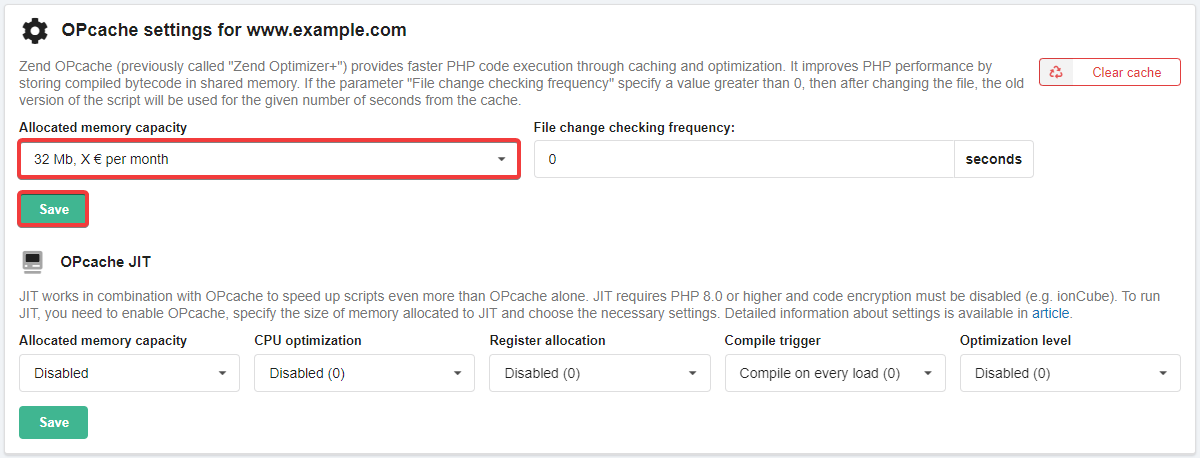
- In the "OPcache settings" block, in the "Allocated memory capacity" field, select the desired memory capacity and click "Save":
- Wait approximately 15 minutes for the changes to take effect.
Configure
OPcache Preloading is not supported due to insecure configuration and the need to update memory-loaded scripts, which can only be updated with a restart of the PHP service.
The parameter "Frequency of checking for changes to files" (opcache.revalidate_freq) is zero by default. This means that each request will check if the script has changed and can still be fetched from the cache or must be called again. Using a value greater than zero makes sense if the site receives a large number of requests and its files are not edited. This will give some performance gain by reducing the number of disk operations.
Statistics
Important points:
- Statistics data are updated each time the statistics page is opened. You can also update them manually using the button in the header of the statistics block.
- Fully filled OPcache storage will not create errors in site performance, but it may be one of the signs that the allocated amount of memory for caching needs to be increased.
- When the storage is 100% full, unpopular and old data will be overwritten by more popular data, so there is no need to worry about caching efficiency.
- To access statistics, the site must be accessible via HTTP and there must be no directives in .htaccess that can prevent direct access to files like
opcache-stat-XXxxxXxXXXXXX.phpin site root directory.
Viewing statistics:
- Open the "OPcache" section.
- In the "Sites with enabled OPcache" block, in the row with the desired site, click "Statistics":

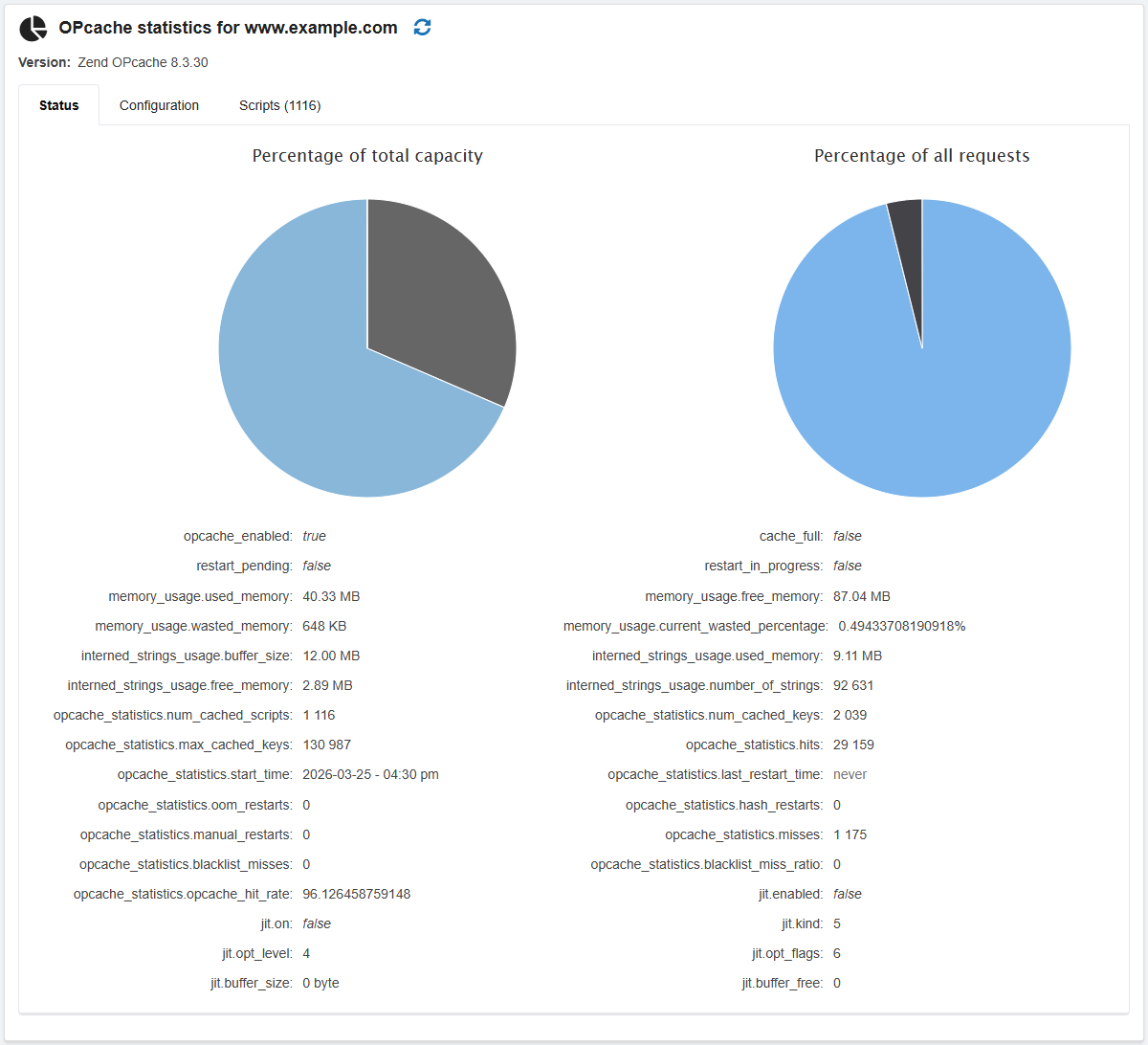
Example statistics:
Chart "Percentage of total volume" shows:
- Percentage of used memory.
- Percentage of free memory.
- Percentage of wasted memory. Wasted memory is memory that is used by data that is already obsolete and irrelevant. It appears due to changes in scripts or impossibility to use current data for them. Such memory is cleared automatically when a certain share of the maximum of the total memory is reached, so manual clearing is not required. This approach ensures faster operation of OPcache.
Chart "Percentage of all requests" shows:
- Hits — statistics of requests to scripts that were in the cache and the result was provided without executing the source code.
- Misses — statistics of script requests that not were in the cache and were executed.
A complete list of OPcache options is available in the official documentation.
List of OPcache options and their current values: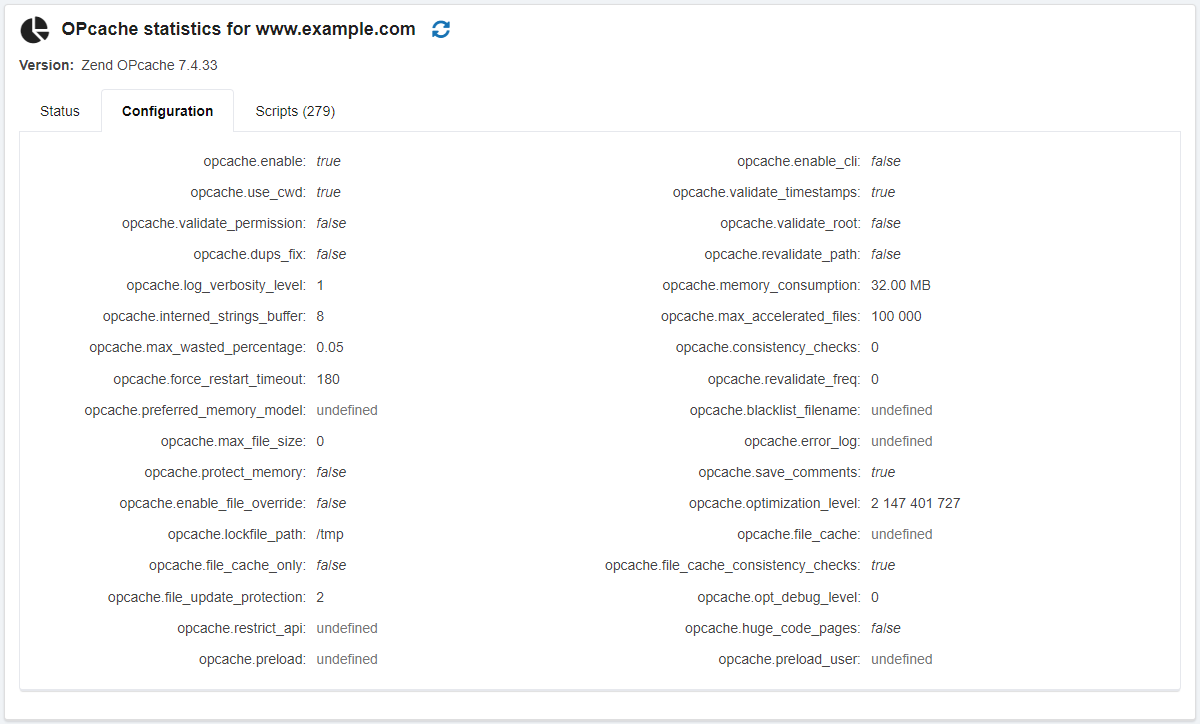
Information about scripts and their optimization: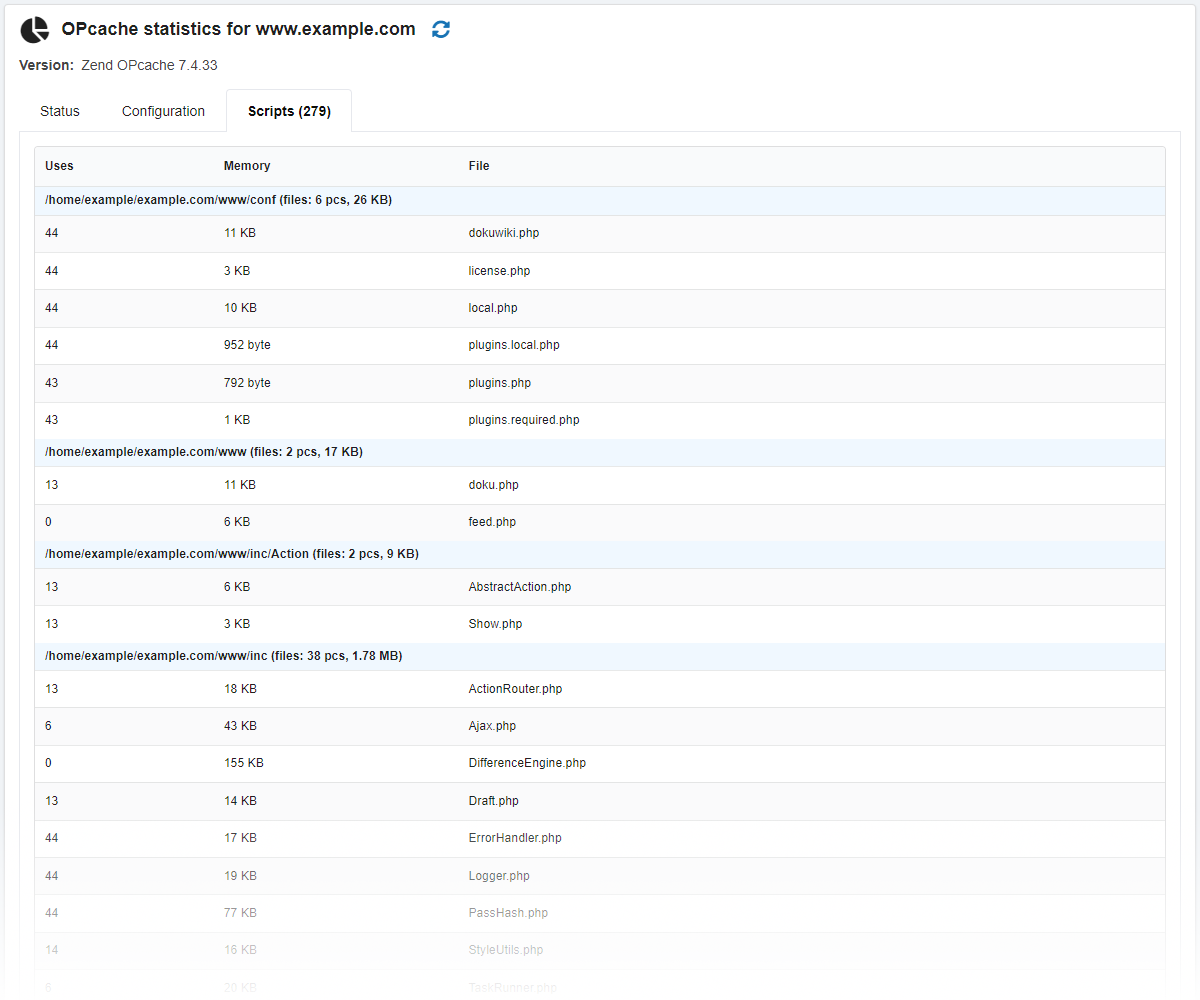
Clear cache
- Open the "PHP settings" section and switch to the "OPcache" tab.
- In the "OPcache settings" block, click "Clear cache".
In the main menu of the bot, select "Hosting → Sites → select site → Clear OPcache".
Disable
- Open the "PHP settings" section and switch to the "OPcache" tab.
- In the "OPcache settings" block, in the "Allocated memory capacity" field, select "Disabled" and click "Save":
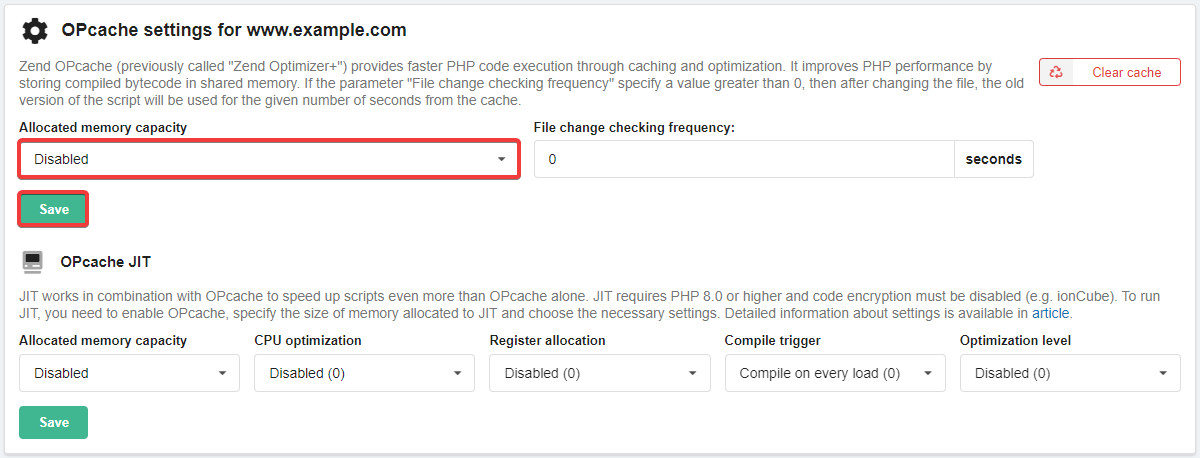
- Wait approximately 15 minutes for the changes to take effect.
JIT
JIT (Just-In-Time) works in combination with OPcache and compiles code into processor instructions directly at runtime, so that some code is executed without a Zend virtual machine at all and is passed directly to the processor for execution. This allows the code to execute even faster than with OPcache without JIT.
The effect of using JIT is more noticeable with code that performs active calculations and intensively uses processor resources, and less noticeable with a large number of I/O operations.
Allocate memory
Important points:
- PHP version must be at least 8.0.
- The capacity of allocated memory cannot exceed the capacity of memory for OPcache.
- ionCube must be disabled.
- Enable OPcache (if not enabled).
- Open the "PHP settings" section and switch to the "OPcache" tab.
- In the "OPcache settings" block in the "OPcache JIT" section, in the "OPcache JIT" field, select the desired memory capacity, settings and click "Save":
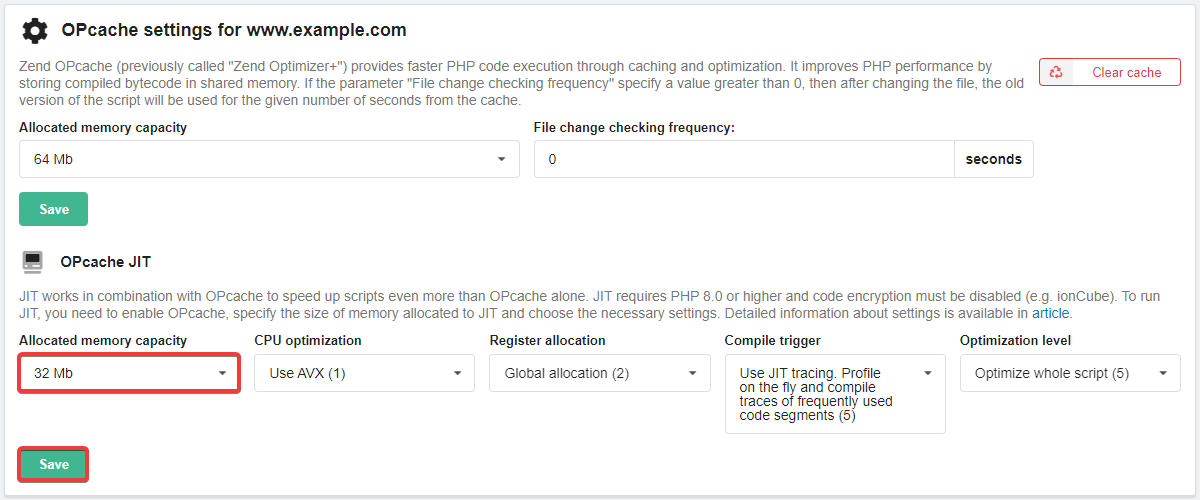
- Wait approximately 15 minutes for the changes to take effect.
Check status
You can check the status of the JIT with a simple PHP script:
<?php
var_dump(opcache_get_status()['jit']);
The result will be something like this:
array(7) {
  ["enabled"]=>
  bool(true)
  ["on"]=>
  bool(true)
  ["kind"]=>
  int(5)
  ["opt_level"]=>
  int(5)
  ["opt_flags"]=>
  int(6)
  ["buffer_size"]=>
  int(33554416)
  ["buffer_free"]=>
  int(33551984)
}
If the enabled and on values are both true, then all is well.
Settings
For JIT, you can configure the use of CPU optimization, register allocation, compilation trigger conditions (trigger), and optimization level: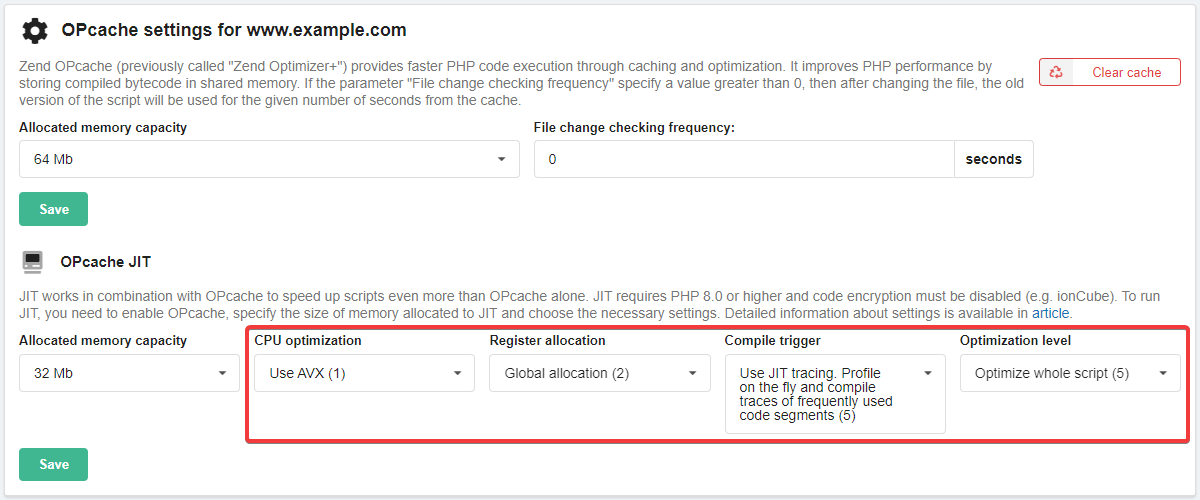
The most optimal value is considered to be 1255 (as in the screenshot above), which allows the JIT to be maximized.
Disable
JIT is automatically disabled when disabling OPcache.
- Open the "PHP settings" section and switch to the "OPcache" tab.
- In the "OPcache settings" block, in the "OPcache JIT" section, select "Disabled" in the "Allocated memory capacity" field and click "Save":
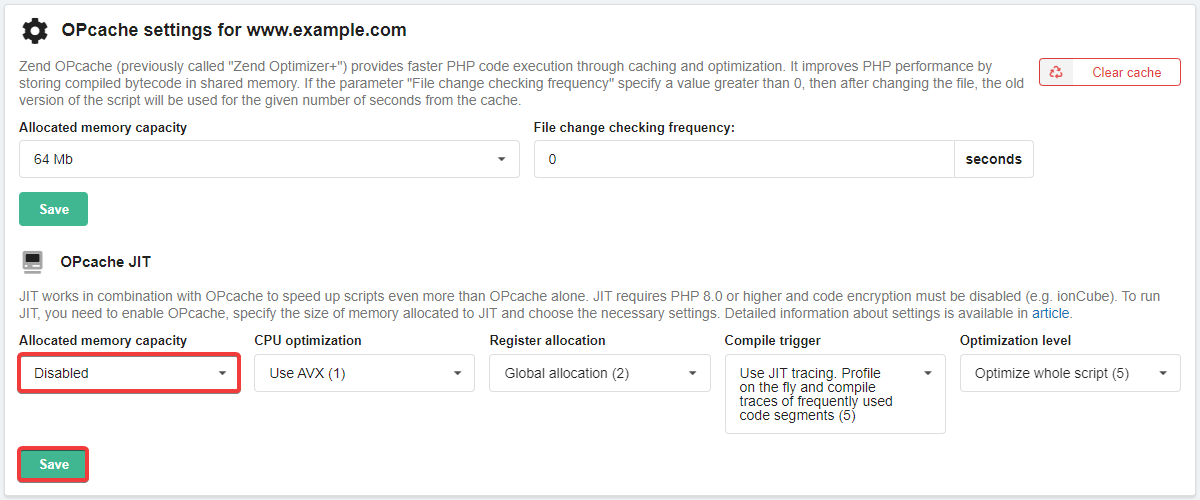
- Wait approximately 15 minutes for the changes to take effect.
コメント